
How to Create a Mix & Match Single Product Bundle in Shopify
How to Create a Mix & Match Single Product Bundle
To setup Mix and Match Bundle on a single product, follow these steps:
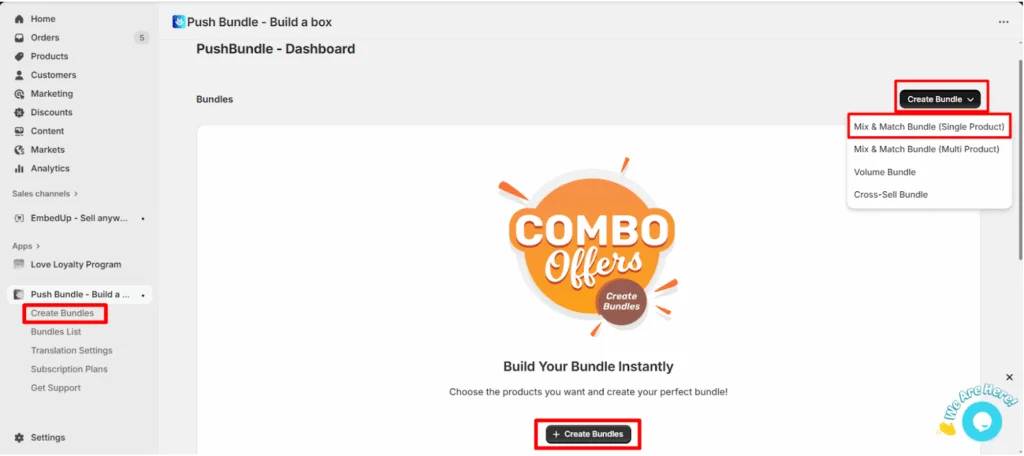
>> From your PushBundle admin panel, you will see the “create bundle” button in 2 places. Also you can see the create bundle on the side menu bar. Click on any of these buttons. For example, Click on the “create bundle”dropdown and select the Mix & Match Bundle (Single Product).
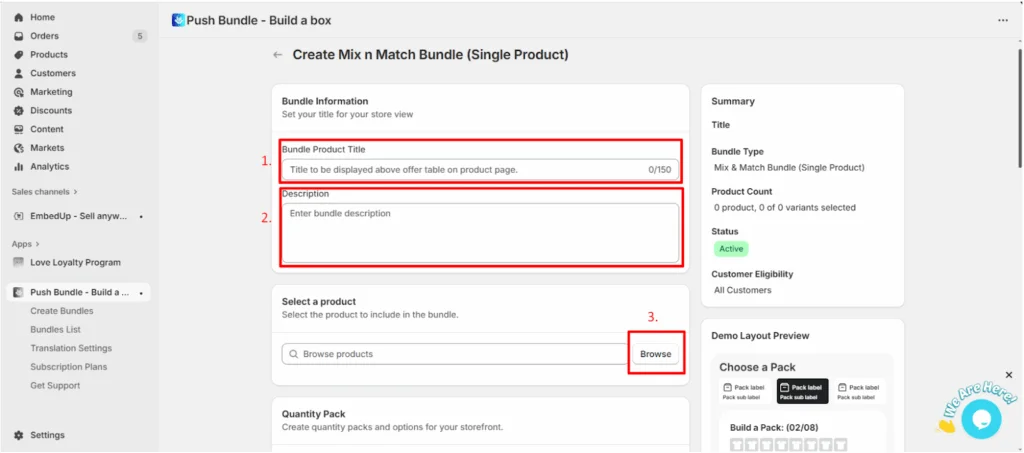
>> 1. Add a unique Bundle Title.
2. Give a description of the bundle (if you want).
3. Select a product where you want to apply this bundle by clicking the Browse
Button.
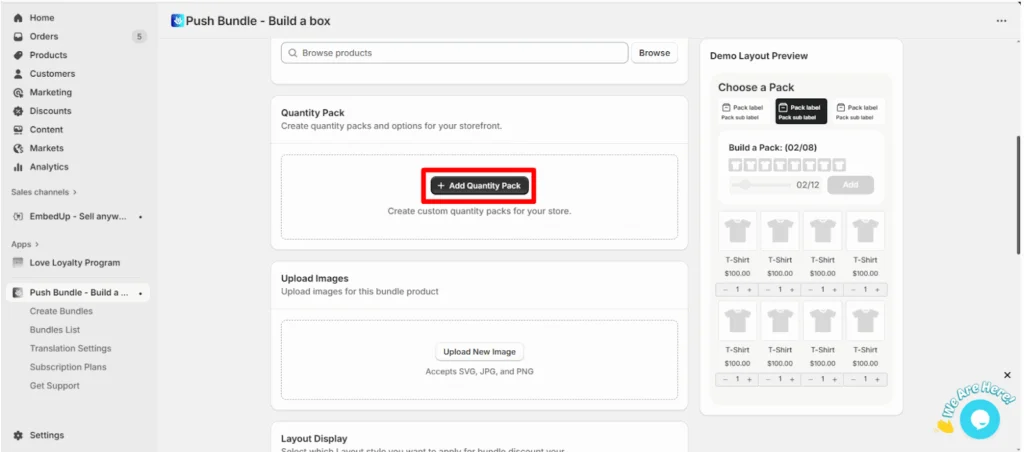
>> From the Quantity Pack section, click on “+Add Quantity Pack”
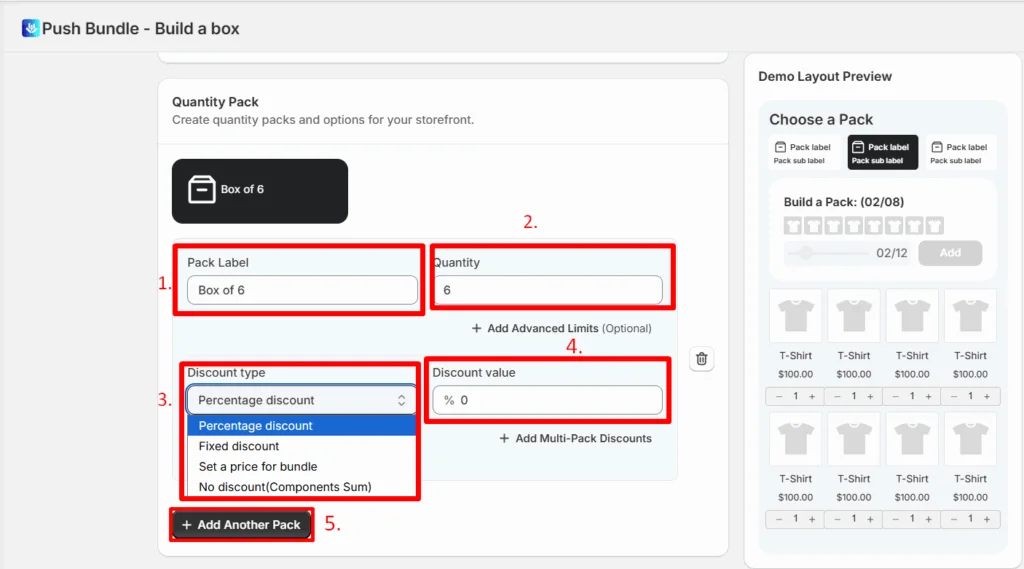
>> 1. Set your pack label, such as “Box of 6”.
2. Set the Quantity, for example for a box of 6 packs, set the quantity as 6.
3. Select the discount type. You can set percentage discount, fixed discount, set a price for the bundle, or No discount.
4. Set the discount value.
5. You can add another pack from the “Add another pack” button.
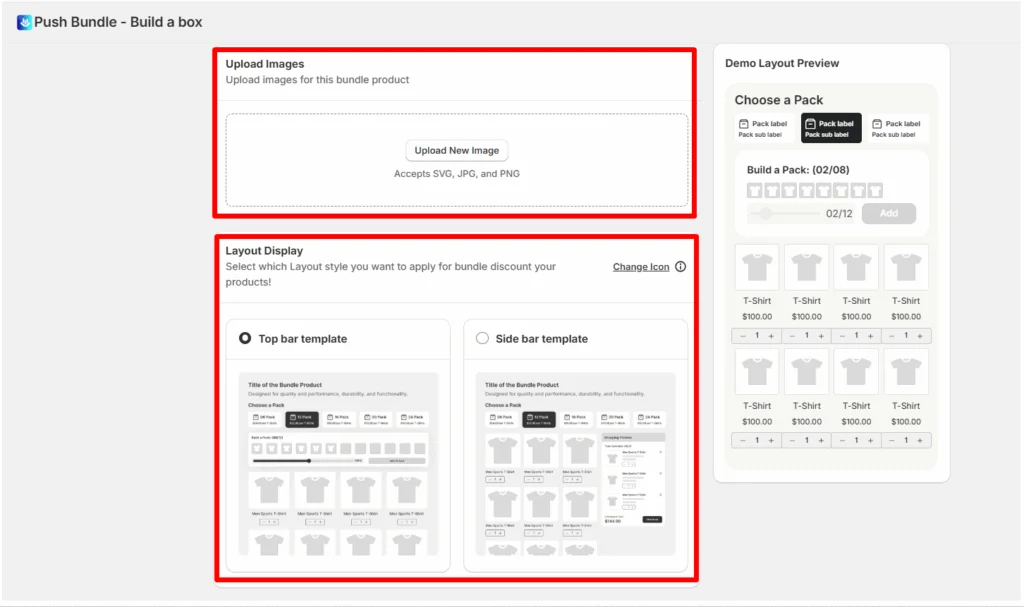
>> Upload your Bundle Image.
>> Select the Layout Display styles.
>> Select the customer eligibility and status and then save it.
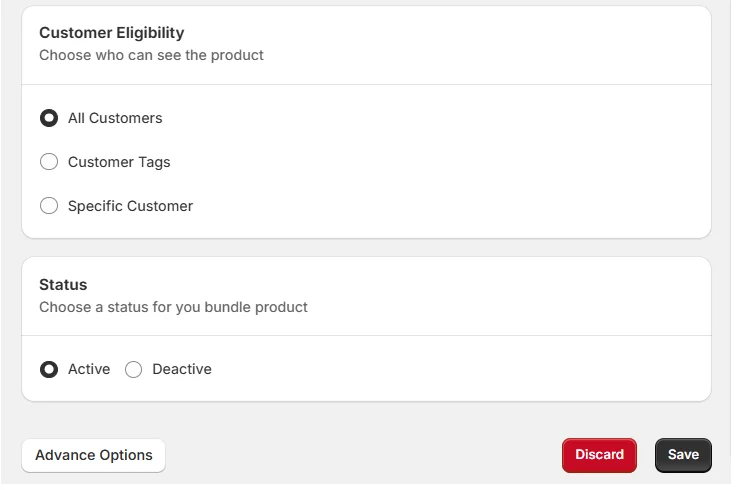
Your Mix and Match bundle on a single product will be created.
How Shopify Inventory Works for Mix & Match Single Product Bundles
A single-product bundle lets customers combine different variants of one product — like Vanilla, Lavender, and Rose of the same candle. Each variant still uses its own existing Shopify stock.

"Create a new product" in Quantity Pack only changes where the bundle appears, not which stock is deducted.
What Happens When Inventory Tracking Is On or Off?
Tracking ON: when a bundle order is placed, the purchased quantity is deducted from that variant's Available stock.

A variant with tracking on (Vanilla) — Shopify shows live Available and On hand counts.
Tracking OFF: Shopify doesn't count stock for that variant, so nothing is deducted. Your PushBundle pack and quantity rules still apply.

A variant with tracking off (Lavender) — no stock count to deduct from.
Example: a Box of 4 with 2 Vanilla and 2 Rose reduces Vanilla and Rose stock by 2 each — variants not chosen don't change.

If you create a new product for the bundle, it lists separately but still shows "Inventory not tracked" — it's a wrapper, not stock-holding.
Good to know: Whether the bundle is added as a new product or embedded in the existing product page, stock is always deducted from the original product's variants.
Watch it in action

Placing a bundle order and watching stock update
Need help? Contact PushBundle support from the app's Help widget, or email support@pushbundle.com.
Related articles
Still stuck?
Contact support →