
How to Create a Mix & Match Multiple Product Bundle in Shopify
How to Create a Mix & Match Multiple Product Bundle
To setup Mix and Match Bundle on multiple products, follow these steps:
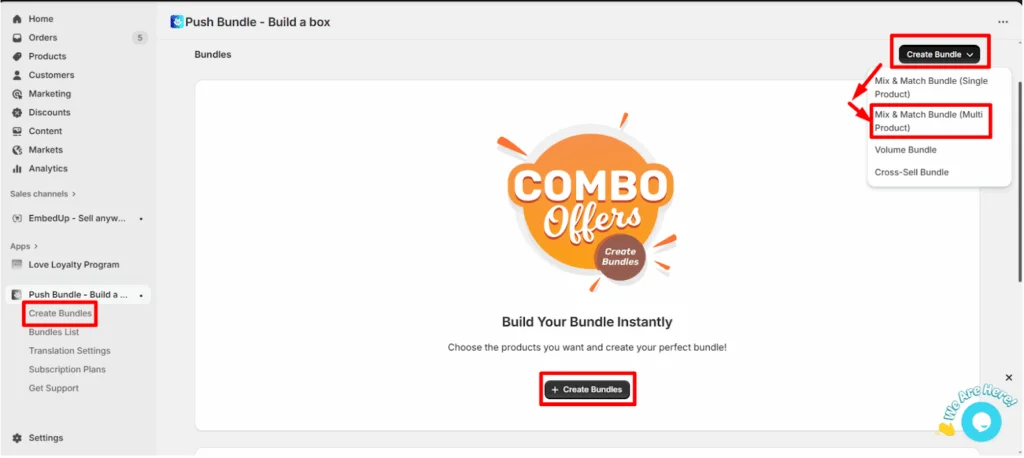
>> From your PushBundle admin panel, you will see the “create bundle” button in 2 places. Also, you can see the create bundle on the side menu bar. Click on any of these buttons. For example, click on the “create bundle”dropdown and select the Mix & Match Bundle (Single Product).
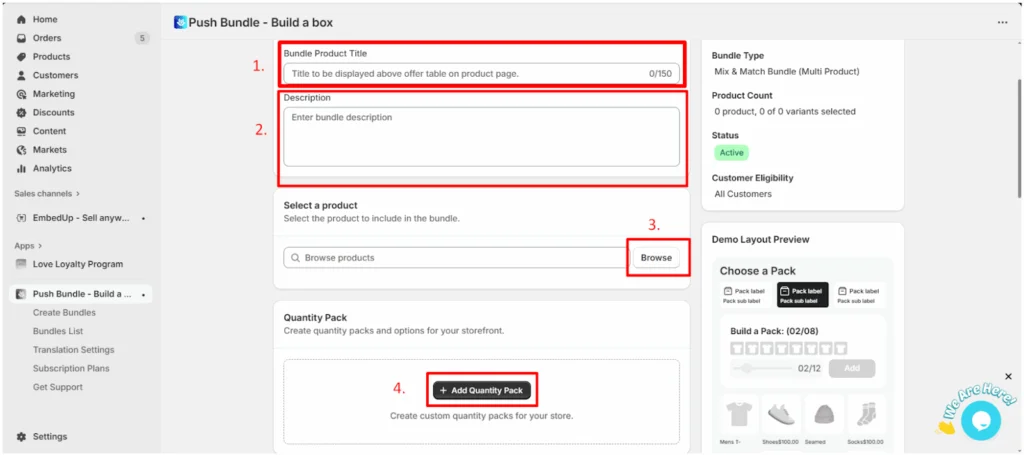
>> 1. Add a unique title to your Bundle.
2. Give a description of the bundle (if you want).
3. Select the products you want to bundle by clicking the browse button.
4. From the “Quantity Pack” option click on “+Add Quantity Pack”.
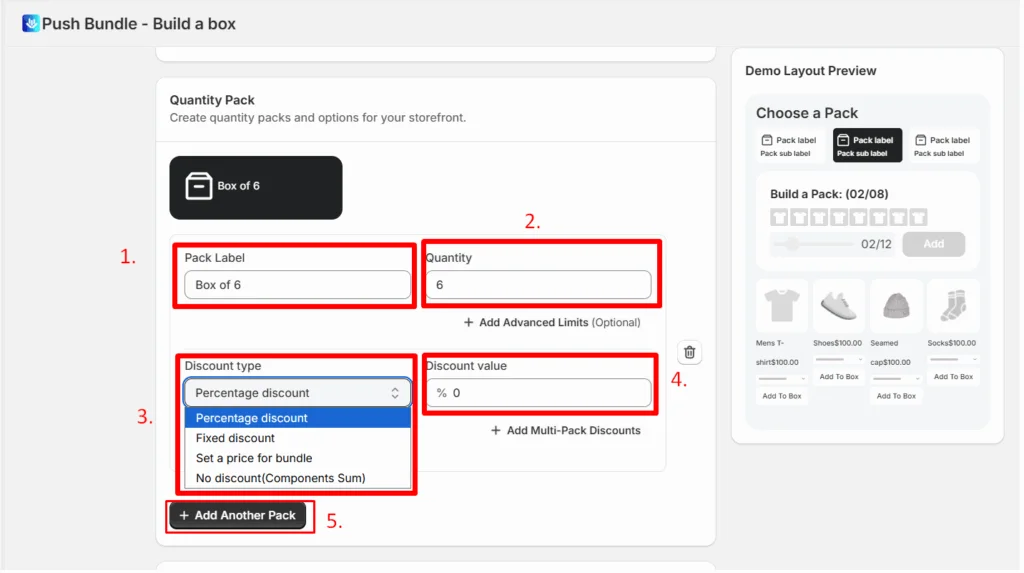
>> 1. Add your Pack Label from here such as “Box of 6”.
2. Set the quantity for this pack. For example, for box of 6 insert the quantity as 6.
3. You can select the Discount Type from here. You can select Percentage Discount, Fixed Discount, Set a price for the bundle and No discounts.
4. Set the discount value, if you select any discount.
5. If you want more packs or boxes, you can add another pack from “+Add
Another Pack”.
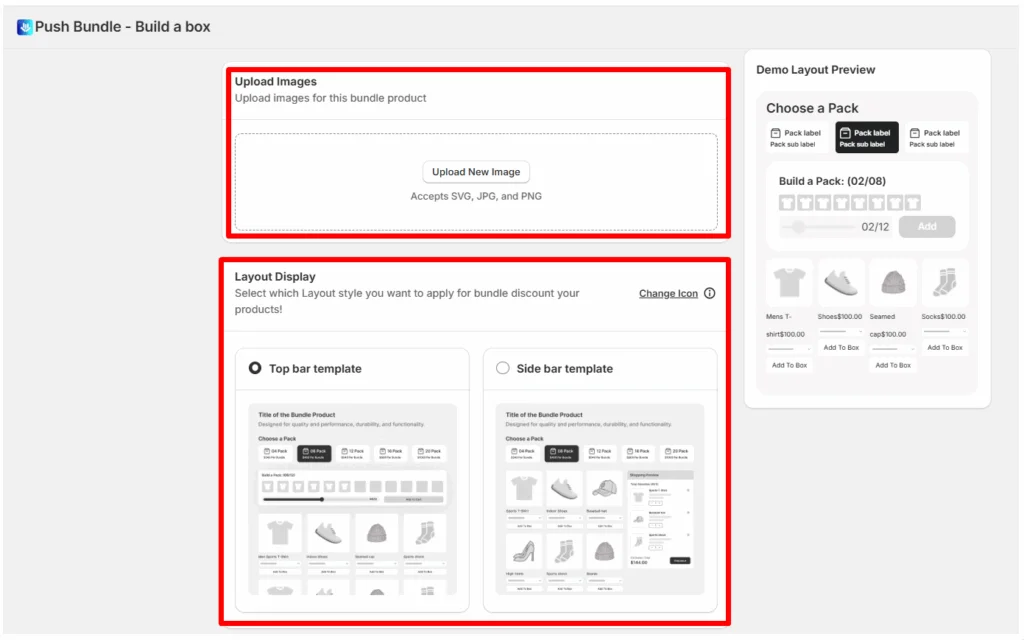
>> You can upload images for the bundle if you want from here.
>> Select the Layout display style.
>> Choose customer eligibility and status and then save it.
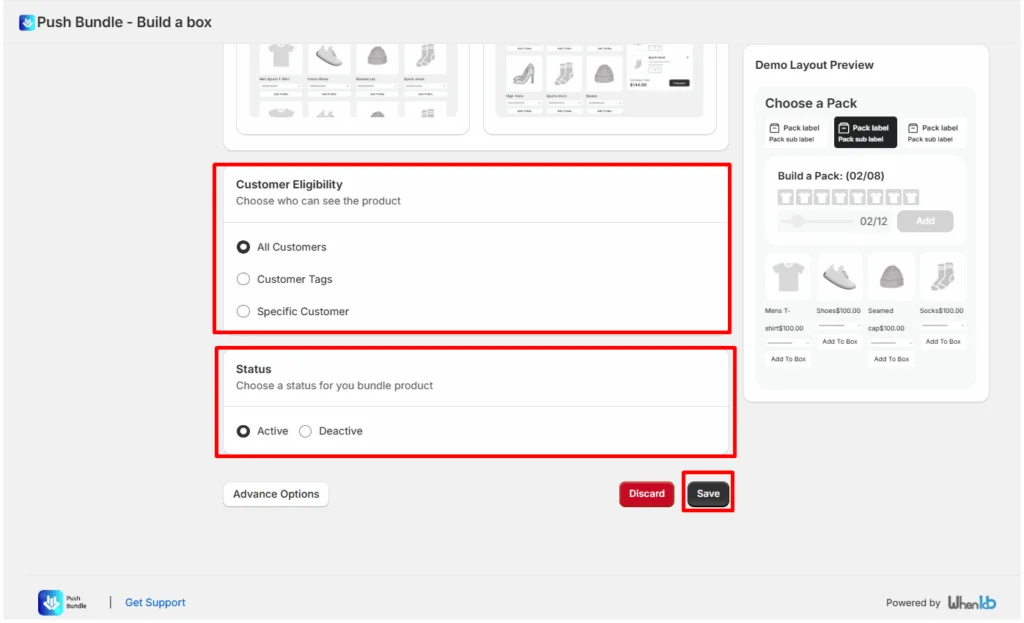
Your Mix & Match bundle on multiple products will be created.
How Shopify Inventory Works for Mix & Match Multiple Product Bundles
A Mix & Match Multiple Product bundle combines items from different products into one bundle. Each item continues to use its existing Shopify inventory, so the bundle does not create separate inventory to manage.

The bundle product as customers see it — built from the original products you selected.
What Happens When Inventory Tracking Is On or Off?
Tracking ON: when a bundle order is placed, the purchased quantity is deducted from that item's available stock, same as a regular sale.
Tracking OFF: Shopify doesn't count stock for that item, so nothing is deducted. Your PushBundle pack and quantity rules still apply.
Example: a bundle with 1 tracked jacket and 1 tracked cap reduces each by 1 unit after purchase — untracked items in the same bundle don't change.

When adding products to the bundle, Available stock is shown for every variant with tracking on.
Why Does the Bundle Product Show “Inventory Not Tracked”?
The bundle product itself always shows "Inventory not tracked" in Shopify Products. This is expected because the bundle product acts as a wrapper for checkout, while the actual inventory remains on the original products and variants included in the bundle.

The bundle product (highlighted) always lists as "Inventory not tracked" — check the original products for real stock levels.
Watch it in action:

Placing a bundle order and watching stock update
Need help? Contact PushBundle support from the app's Help widget, or email support@pushbundle.com.
Related articles
Still stuck?
Contact support →