
How to Set Quantity Restrictions for Each Variant in a Mix & Match Bundle
Quantity restrictions let you control how many units of each variant a customer can select in a Mix & Match bundle. Using Quantity per variant in Advanced Limits, you can set a minimum quantity, a maximum quantity, or both for the variants in a Quantity Pack.
Before You Start
Make sure you have PushBundle installed and are creating a Mix & Match Bundle (Single Product). You will also need to select the product whose variants you want customers to mix and match.
If you need the full bundle setup process first, follow the Mix & Match Single Product setup guide.
How to Set Quantity Restrictions
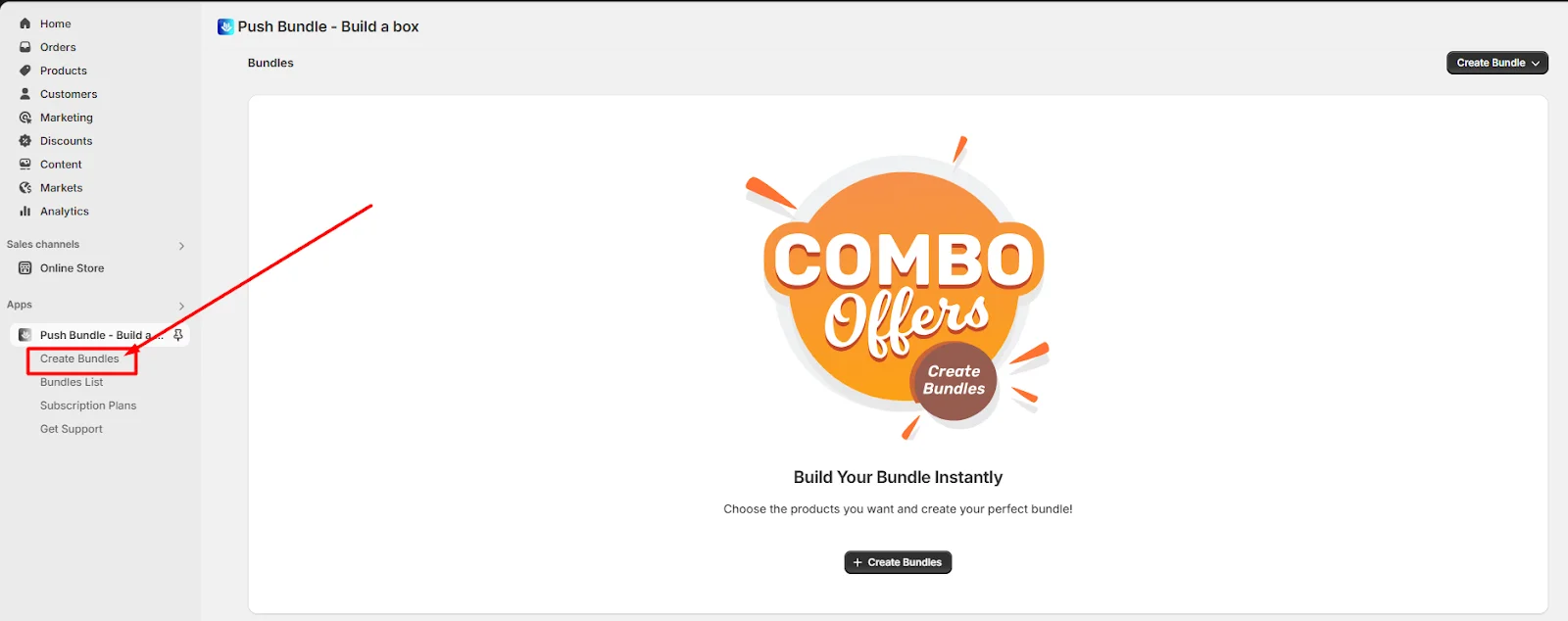
1. Open Create Bundles
From your PushBundle dashboard, click Create Bundles.
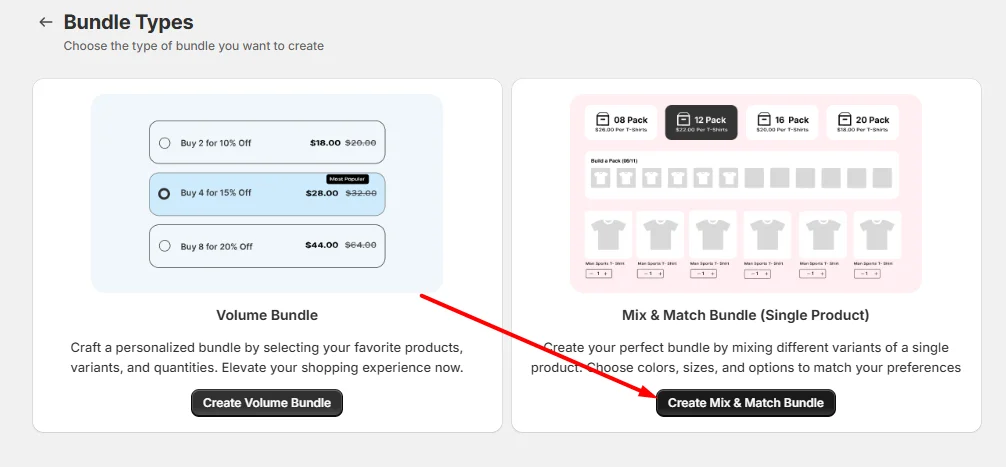
2. Select Mix & Match Bundle (Single Product)
Select Mix & Match Bundle (Single Product), then click Create Mix & Match Bundle to open the bundle setup page.
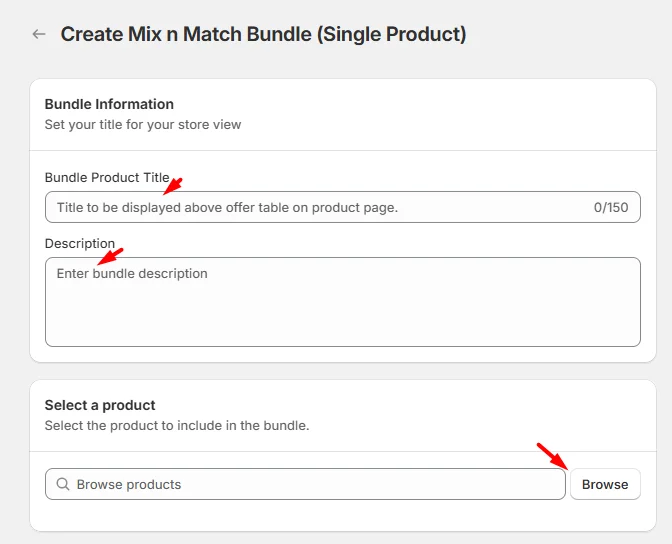
3. Add the Bundle Details and Select a Product
Enter a Bundle Product Title that customers will see with the bundle.
Add a Description if you want to explain the offer.
Under Select a product, click Browse and choose the product whose variants customers will be able to select.
4. Add a Quantity Pack
Under Quantity Pack, click + Add Quantity Pack.
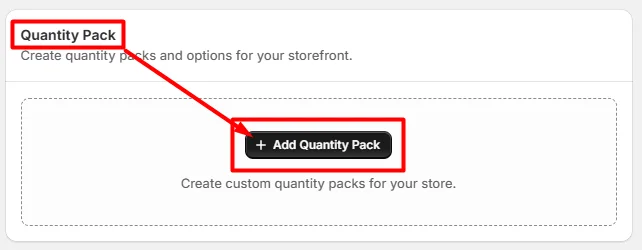
PushBundle creates Pack 1. You can add additional packs if you want to offer different bundle quantities.
5. Open Advanced Limits
In the Quantity Pack you want to configure, click + Add Advanced Limits.
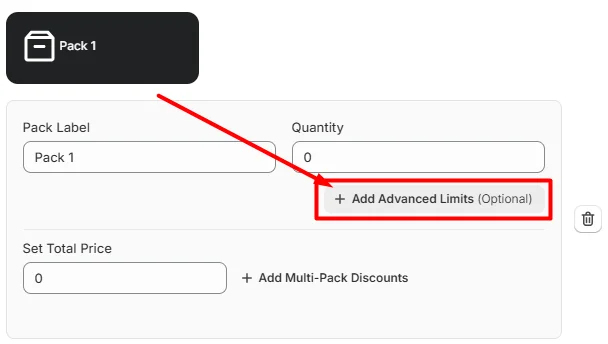
6. Set the Minimum and Maximum Quantity per Variant
Under Quantity per variant, enter the minimum and maximum number of units a customer can select for each variant in the pack.
Minimum sets the lowest quantity allowed for each selected variant.
Maximum sets the highest quantity allowed for each selected variant.
Example: If you set the minimum to 2 and the maximum to 5, a customer can select between 2 and 5 units of each variant they choose.
Quantity per Variant vs. Number of Variants
Quantity per variant controls how many units of each selected variant a customer can add.
Number of variants controls how many different variants the customer can select in the pack.
For more details, see how Number of Variants and Quantity per variant limits work.
7. Save and Test the Quantity Restriction on Your Storefront
Save the Mix & Match bundle, then open the product page on your storefront. Select different variants and test quantities below the minimum and above the maximum to confirm that the restriction is enforced correctly.
Also confirm that valid quantities can be selected and the bundle can be added to the cart.
If the Mix & Match bundle does not appear on the product page, confirm that the PushBundle app block is added to your Shopify theme.
Common Quantity Restriction Issues
The Advanced Limits option is not visible
Make sure you have first added a Quantity Pack. Advanced Limits are configured inside each pack.
The minimum or maximum quantity is not working as expected
Check that you entered the values under Quantity per variant, not Number of variants. Quantity per variant controls units of each variant; Number of variants controls how many different variants customers can select.
The Mix & Match bundle is not visible on the product page
Make sure the bundle is active and the PushBundle app block is added to the correct Shopify product template.
The restriction is configured but has not been tested
Open the storefront product page and try quantities below the minimum, within the allowed range, and above the maximum before making the bundle available to customers.
Need Help?
If you face any further issues or need help, feel free to contact us. Our support team will be happy to help you.
You can always reach us via
➜ Support ticket from PushBundle app
➜ Live Chat in PushBundle app
➜ Direct email to support@pushbundle.com
So, Good Luck! And happy selling with PushBundle.
Related articles
Still stuck?
Contact support →